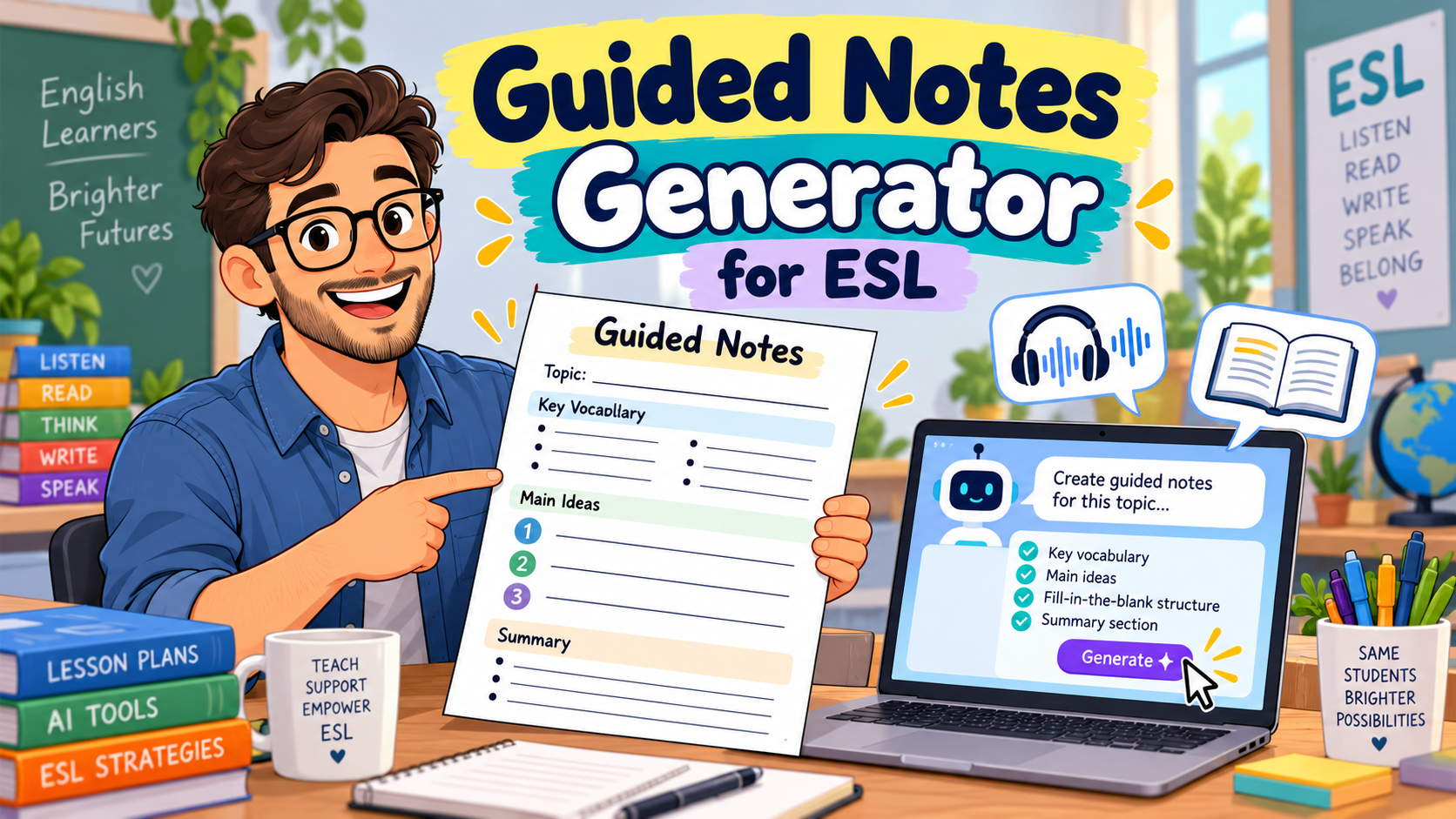
A guided notes generator can help English teachers turn a reading passage, listening transcript, or lesson presentation into a structured note-taking activity. Instead of handing students a blank page and asking them to write down everything, you give them an outline with carefully chosen gaps, questions, and spaces for their own ideas.
Imagine preparing a B1 listening lesson about sustainable cities. You want students to understand the main ideas, recognise cause-and-effect relationships, and record important examples. Creating those notes manually takes time, particularly when you teach several classes at different levels.
With AI, you can generate a first draft of guided notes from your existing lesson materials and then adapt it to your students’ needs.
In this guide, you’ll learn how guided notes work, which AI tools can help create them, and how to write effective prompts for ESL listening and reading lessons. You’ll also get a complete classroom example with a student worksheet and answer key.
What Is a Guided Notes Generator?
A guided notes generator is a tool or AI-assisted workflow that creates partially completed notes for learners to finish while reading, listening, or following a presentation.
Guided notes are sometimes called skeleton notes because they provide the structure while leaving selected information for students to complete.
For example, instead of telling students to take notes about an entire listening passage, you might give them this outline:
Topic: Healthy Eating
- The speaker recommends eating more __________.
- Drinking enough __________ helps the body function properly.
- One problem with eating too much fast food is __________.
- The speaker’s main advice is __________.
Students still need to listen carefully, but the worksheet directs their attention towards important information.
This differs from a traditional comprehension worksheet. Comprehension questions usually check understanding after students have read or listened. Guided notes support the process of identifying, organising, and recording information as students encounter it.
For ESL/EFL learners, this structure can be particularly useful when they are still developing their ability to process spoken English, recognise main ideas, and distinguish essential information from minor details.
Why Use Guided Notes in ESL Lessons?
Taking notes in another language can be demanding. Students must follow the speaker or text, identify important information, understand unfamiliar vocabulary, and decide what to write.
Guided notes reduce some of the organisational demands by providing an outline in advance.
The University of Massachusetts Amherst’s guidance on scaffolded note-taking recommends designing guided notes around learning goals, difficult concepts, and meaningful student engagement rather than simply removing random words.
Research on guided notes has identified potential benefits for learning and achievement in several educational contexts. However, the research does not establish that every guided-notes format will improve every ESL learner’s performance.
For English teachers, the practical value lies in making note-taking more purposeful.
A well-designed activity can help students:
- Focus on key information during listening or reading.
- Recognise relationships such as cause and effect, comparison, and sequence.
- Organise vocabulary and concepts.
- Practise completing notes using keywords or short phrases.
- Review the lesson afterwards.
- Build confidence before moving towards independent note-taking.
The important point is that guided notes should support students’ thinking, not replace it.
If every sentence is already written and students only copy an occasional word, the activity may become little more than a transcription exercise.
Best AI Tools for Creating Guided Notes
You don’t necessarily need software built exclusively for note-taking. A general AI assistant can create structured notes from a text, while some education-focused platforms offer more specialised workflows.
Here are three practical options worth considering.
1. ChatGPT: Best for Flexible, Custom ESL Guided Notes
ChatGPT is useful when you want control over the type of guided notes being generated.
You can provide a reading passage or transcript and specify the learner level, lesson objective, note-taking format, and number of gaps.
For example, you could ask ChatGPT to create:
- A2 listening notes with a small word bank.
- B1 reading notes organised by main idea and supporting details.
- B2 academic listening notes using cause-and-effect relationships.
- Differentiated versions of the same activity.
- A separate teacher answer key.
The advantage is flexibility. You can revise the output through follow-up instructions instead of starting again.
OpenAI’s guidance for educators also emphasises that AI-generated teaching materials should be reviewed and adapted by the teacher.
Possible limitation: ChatGPT does not automatically know your learners’ actual proficiency, and it may introduce information that isn’t in the original material. Give it the source text and check the completed worksheet.
2. Brisk Teaching: Best for Creating Guided Notes from Existing Resources
Brisk Teaching provides a dedicated guided-notes creation option.
Its documentation describes workflows for creating structured notes from articles, videos, and lesson topics. This makes it particularly relevant when your lesson already revolves around a specific resource.
For instance, an English teacher could start with a suitable educational video and use Brisk to generate notes that students complete while watching.
You can then revise the notes to match your lesson goals and language level.
Best suited to: Teachers who regularly work with existing online content, documents, and presentations.
Possible limitation: Automatically generated notes may emphasise details that are less important for your ESL lesson. Review the language demands and instructional focus before using them.
3. Diffit: Best for Differentiated Reading and Lesson Resources
Diffit supports creating differentiated instructional materials, including lesson kits with guided notes.
This can be useful when students need help understanding a challenging reading passage or when you want a structured set of resources around one topic.
For example, you might prepare a lesson about climate change and create guided reading notes alongside vocabulary activities and comprehension questions.
Best suited to: Teachers who want guided notes as part of a wider differentiated lesson.
Possible limitation: You may still need to adjust the vocabulary, sentence length, and activity structure to reflect your learners’ specific needs.
Which Guided Notes Generator Should You Choose?
| Teaching need | Suggested option |
|---|---|
| Fully customised ESL listening notes | ChatGPT |
| Notes based on an existing article or video | Brisk Teaching |
| Differentiated reading and lesson materials | Diffit |
| Complete control over final formatting | ChatGPT plus Google Docs or Word |
Feature availability and free-plan restrictions can change, so check each provider before choosing a subscription.
If you’re already using a general AI assistant, start there. The quality of your instructions often matters more than the number of specialised features available.
How to Create Guided Notes with AI in 5 Steps
Using a guided notes generator is straightforward, but the quality of the final activity depends on the decisions you make before writing the prompt.
Step 1: Start with Your Lesson Objective
Ask yourself what students should understand or be able to do.
For a B1 reading lesson, your objective might be:
Students will identify the main problem, proposed solution, and results described in a short informational text.
For an A2 listening lesson, it might be:
Students will identify specific information about times, places, and activities in a short announcement.
These objectives lead to different note-taking formats.
The B1 lesson could use a problem–solution–result outline, while the A2 lesson might use a simple table.
Step 2: Choose Your Source Material
A good starting point is a text or transcript you’re already planning to use.
Suitable materials include:
- Short informational passages.
- Dialogues or interviews.
- Teacher-written listening scripts.
- Educational video transcripts.
- Lecture outlines.
- Lesson presentation notes.
Whenever possible, give the AI the actual text.
If you only provide a topic, the AI may generate plausible information rather than notes based on the material your students will encounter.
Use resources you have permission to process, and avoid uploading private student information.
Step 3: Specify the Note-Taking Format
Don’t simply write, “Create guided notes.”
Tell the AI what students need to record.
For example:
“Create guided notes for B1 learners. Organise them into main problem, causes, proposed solution, and results. Leave eight meaningful gaps. Include one short question requiring students to explain the main idea in their own words.”
This produces a more purposeful task than removing random words from a paragraph.
Step 4: Review the AI-Generated Notes
Before distributing the worksheet, check four things:
Accuracy: Can every factual answer be supported by the source?
Language level: Are the instructions and expected answers manageable for your students?
Learning objective: Do the gaps and questions focus on the information you want students to understand?
Answer key: Are all acceptable answers included, especially when students may use different wording?
If an answer requires a word that never appears in the text or transcript, revise the item.
Step 5: Format and Use the Worksheet
Once the content is ready, copy it into Google Docs, Microsoft Word, or your preferred worksheet editor.
Leave enough writing space, use clear headings, and provide accessible formatting.
For listening activities, consider letting students read the headings before the recording begins.
Afterwards, ask students to compare notes in pairs before checking the answers together.
If you want to expand the activity into a complete language worksheet, our AI worksheet generator guide includes additional approaches for vocabulary, grammar, and comprehension practice.
Three Free AI Prompts for Generating ESL Guided Notes
The following prompts are free to copy and adapt. They work as templates for a general AI assistant, although the specific results will vary.
Prompt 1: Guided Notes Generator for A2 Listening
Use this when students need support recognising details in a short conversation, announcement, or interview.
Copy-and-paste prompt:
Act as an experienced ESL listening teacher.
Create guided listening notes for A2 English learners.
Lesson information:
- Topic: [TOPIC]
- Listening duration: [DURATION]
- Learning objective: Identify specific information from a short spoken text.
Transcript:
[PASTE LISTENING TRANSCRIPT]
Create the following:
- A clear worksheet title and one short instruction.
- A note-taking table or simple outline that follows the order of the recording.
- Six meaningful gaps focusing on key details such as times, places, reasons, or activities.
- A small word bank only if needed for learner support.
- One simple question about the main message.
- A separate teacher answer key.
Use language appropriate for A2 learners.
Every factual answer must be supported by the transcript. Do not invent information, and do not make every gap a random missing word from a sentence.
Keep the worksheet suitable for printing on one page.
Teacher tip: If learners struggle to process the recording, play it once for general understanding and again for completing the notes. A third listening can be used to check difficult answers.
Prompt 2: Guided Notes Generator for B1 Reading
This prompt is useful for informational texts, short articles, and classroom readings.
Copy-and-paste prompt:
Act as an experienced B1 ESL reading teacher.
Turn the following passage into a guided-notes worksheet.
Reading text:
[PASTE TEXT]
Lesson objective:
Students will identify the main idea, important details, and relationships between ideas.
Requirements:
- Create a short title and clear student instructions.
- Organise the notes under logical headings based on the content.
- Include eight meaningful gaps or partially completed statements.
- Include at least one relationship between ideas, such as cause and effect, problem and solution, or comparison.
- Add one question requiring students to summarise an idea in their own words.
- Provide an accurate answer key with acceptable alternative wording.
- Keep the expected answers concise and appropriate for B1 learners.
Use only information supported by the passage.
Avoid simply copying every sentence and deleting one word. The activity should help students organise information while reading.
Teacher tip: Ask students to skim the passage before completing the notes. This helps them understand the overall topic rather than searching immediately for isolated answers.
For more activities before and after reading, explore our reading worksheet generator prompts.
Prompt 3: Guided Notes Generator for B2 Academic Listening
At B2 level, students can practise recognising more complex relationships and organising extended explanations.
This is particularly useful for learners preparing for university study or academic presentations.
Copy-and-paste prompt:
Act as an experienced academic English teacher working with B2 ESL/EFL learners.
Create guided notes based on the lecture transcript below.
Lecture topic:
[TOPIC]
Lecture transcript:
[PASTE TRANSCRIPT]
Learning objectives:
Students will identify the lecture’s central argument, supporting explanations, examples, and relationships between ideas.
Create:
- A structured note-taking outline with three or four main sections.
- Ten strategically chosen gaps or prompts.
- At least two prompts focusing on relationships between ideas, such as cause and effect, contrast, or problem and solution.
- Space for students to record a supporting example.
- One final task asking students to summarise the lecture’s central message in two sentences.
- A teacher answer key, including acceptable paraphrases.
Do not turn the activity into a full lecture transcription.
Use the language of academic note-taking where appropriate, but keep the student instructions clear.
Do not invent concepts or examples that are absent from the transcript.
Teacher tip: After students finish, remove some of the scaffolding in the next lesson. The long-term goal is for learners to become more independent note-takers.
Complete Classroom Example: B1 Guided Reading Notes
Let’s see what a finished activity could look like.
Imagine you’re teaching a B1 reading lesson about community services. The reading is short enough to use in a regular classroom session, and the lesson objective is to identify a problem, actions taken, and results.
Original Reading Text
A Library That Listened to Students
Last year, the Green Street Library noticed that many teenagers had stopped visiting after school. The library staff asked students what would make the space more useful.
Most students wanted a quiet area for homework and a place to work on group projects.
In response, the library moved several bookshelves and created two study zones. Volunteers also started free conversation clubs for students learning English.
After three months, the number of teenage visitors rose from 40 to 65 per week.
The library now asks students for feedback at the end of every term.
Student Worksheet: Guided Reading Notes
Level: B1
Topic: Community Services
Objective: Identify a problem, the actions taken to address it, and the results.
Instructions: Read the article. Complete the notes with information from the text. Use short answers.
1. The Problem
- The library noticed that fewer __________ were visiting after school.
- To understand the problem, staff asked students for __________.
2. What Students Needed
Students wanted:
- A quiet place to do __________.
- Somewhere to work on __________ projects.
3. The Library’s Response
- The library created __________ study zones.
- Volunteers organised free __________ clubs for English learners.
4. Results
- Before the changes: __________ teenage visitors per week.
- Three months later: __________ teenage visitors per week.
5. Think About the Main Idea
In one or two sentences, explain how the library responded to students’ needs.
Teacher Answer Key
| Item | Answer |
|---|---|
| 1 | teenagers |
| 2 | feedback / their opinions |
| 3 | homework |
| 4 | group |
| 5 | two |
| 6 | conversation |
| 7 | 40 |
| 8 | 65 |
Possible answer to the final question:
The library listened to students and created spaces for studying and group work. It also introduced conversation clubs, and more teenagers started visiting.
Accept other answers that accurately explain the connection between student feedback and the library’s changes.
Why This Example Works
The worksheet follows the organisation of the reading passage: problem, needs, response, and results.
Students must locate important details, but they also encounter a logical structure that helps them understand how the information is connected.
The final question goes beyond gap-filling by asking learners to explain the main idea in their own words.
This is one way to make guided notes more meaningful than a simple missing-words exercise.
How to Adapt Guided Notes for Different English Levels
A good guided notes generator should help you adjust the amount of support rather than merely changing a worksheet’s level label.
| Level | Recommended structure | Student task |
|---|---|---|
| A1–A2 | Short headings, word banks, simple tables | Record familiar words, numbers, and basic details |
| B1 | Partially completed outlines | Identify main ideas, details, and basic relationships |
| B2 | Structured notes with fewer gaps | Record explanations, contrasts, and supporting examples |
| C1 | Minimal scaffolding and open prompts | Summarise arguments, evaluate ideas, and organise complex information |
For mixed-level classes, try creating two versions of the same notes.
Supported version: Provide headings, sentence starters, and selected answer choices.
Independent version: Keep the main headings but leave students to decide which details to record.
This allows students to work with the same reading or listening material while receiving different levels of support.
You can use this follow-up AI prompt:
“Create two differentiated versions of these guided notes. Version A should provide more scaffolding for learners who need support. Version B should offer fewer hints and require more independent note-taking. Keep the same source material and learning objective.”
The teacher should still check both versions and ensure the more supported worksheet does not unintentionally reveal all the important answers.
Common Mistakes to Avoid with AI-Generated Guided Notes
1. Removing Words at Random
A worksheet that deletes every fifth word may test isolated vocabulary rather than comprehension.
Better approach: Leave gaps for details, key concepts, and meaningful relationships.
2. Providing Too Many Gaps
When students have to complete a gap almost every few seconds, listening can become frustrating.
Better approach: Choose a manageable number of important answers. For a short A2 recording, five or six carefully selected gaps may be more useful than fifteen.
3. Making the Notes Too Complete
If the entire passage is already summarised, students may have little reason to process the material themselves.
Better approach: Leave space for short explanations or personal summaries, not just single-word answers.
4. Trusting the AI Answer Key
AI can misread a text, invent a detail, or overlook an alternative answer.
Better approach: Check every answer against the original material. For open-ended tasks, include acceptable variations.
5. Treating Guided Notes as the Final Goal
Some learners may become dependent on structured worksheets if they never practise taking notes independently.
Better approach: Gradually reduce the level of support as learners develop confidence and skill.
6. Ignoring Accessibility and Classroom Practicality
A worksheet with tiny text, narrow writing spaces, or complicated tables may be difficult to use.
Better approach: Provide readable formatting, sufficient writing space, and clear headings. Consider accessible digital formats where appropriate.
Also avoid uploading identifiable student records to AI services without proper authorisation and compliance with your institution’s data policies.
Free ESL Guided Notes Template
You can use the following structure whenever you need to build a simple reading or listening note-taking worksheet.
Guided Notes: [LESSON TOPIC]
Level: [A2 / B1 / B2]
Learning objective: [WHAT STUDENTS SHOULD IDENTIFY OR EXPLAIN]
Before Reading or Listening
What do you already know about this topic?
Part 1: Main Idea
The text or speaker is mainly about:
Part 2: Important Details
- Detail 1: ________________________________
- Detail 2: ________________________________
- Detail 3: ________________________________
Part 3: Connections Between Ideas
The main problem or cause is:
The solution or result is:
Part 4: My Summary
In two sentences, summarise what you learned.
Teacher Answer Key
[INSERT EXPECTED ANSWERS AND ACCEPTABLE ALTERNATIVES]
This template works as a starting point, but don’t feel obliged to use every section. Adapt the structure to the skill being practised.
If you want more control over the layout, editing, and exporting of generated worksheets, read our comparison of customizable worksheet software for English teachers.
Free Resource: AI Worksheet Prompts for English Teachers
Guided notes are just one way to use AI in lesson preparation.
If you regularly create grammar, vocabulary, reading, and assessment activities, our Free AI Worksheet Prompt Pack for English Teachers offers 25 reusable prompts to help you prepare classroom materials.
You can adapt them to your lesson objectives and students’ English levels.
Get the free AI Worksheet Prompt Pack and spend less time starting worksheets from scratch.
[WORDPRESS EDITOR NOTE: Insert your existing MailerLite AI Worksheet Prompt Pack form here. Remove this note before publishing.]
Frequently Asked Questions About Guided Notes Generators
What is the best guided notes generator for teachers?
The best option depends on your teaching workflow. ChatGPT is useful for fully customised notes, Brisk Teaching offers a dedicated guided-notes tool, and Diffit supports guided notes within broader lesson resources. Review the outputs before assigning them to students.
Can I create guided notes with ChatGPT?
Yes. Provide the reading passage or listening transcript, learner level, lesson objective, and desired structure. Ask ChatGPT to generate partially completed notes and a separate answer key.
Is there a free guided notes generator?
You can use the free prompts in this article with an AI tool available to you. Free access, usage limits, and specialised features depend on the platform and may change.
Can a guided notes generator work with videos?
Yes, some tools support generating materials from video content or transcripts. For more predictable results, provide an accurate transcript and ask the AI to follow the same sequence as the recording.
Are guided notes suitable for ESL listening activities?
They can be useful when students need help focusing on specific details, main ideas, or relationships. The number of gaps and expected answers should match the recording’s length and the learners’ proficiency.
What’s the difference between guided notes and fill-in-the-blank worksheets?
Fill-in-the-blank worksheets generally require students to complete missing words or phrases. Guided notes can include gaps, but their broader purpose is to help learners identify and organise important information through outlines, tables, headings, and short written responses.
How many gaps should guided notes include?
There is no universal ideal number. A short beginner listening task might use five or six meaningful gaps, while an advanced lecture activity might include fewer prompts requiring more substantial note-taking. Choose the number based on the learning objective, text complexity, and students’ needs.
Should I provide an answer key for guided notes?
Yes, especially when AI helped generate the worksheet. A checked answer key helps you identify inaccurate or ambiguous questions and allows students to review their work. For open-ended responses, include possible answers rather than insisting on one exact sentence.
Conclusion: Use AI to Support Better Note-Taking
A guided notes generator can make ESL lesson preparation more manageable, especially when you regularly create reading and listening activities.
The real benefit is not simply producing worksheets faster. It is being able to design a note-taking activity around what you actually want students to learn.
Start with a clear objective, provide the source material, choose a suitable structure, and ask AI to create a first draft. Then review the questions, gaps, language level, and answer key before using the material.
Most importantly, give students opportunities to move beyond completing missing words. Encourage them to explain ideas, compare notes, summarise information, and gradually take more responsibility for their own learning.
Want more practical AI prompts for your English lessons? Get our free AI Worksheet Prompt Pack and start building reusable classroom resources.