There is a familiar moment in many language classes: the presentation is still on the screen, but the class has quietly stopped paying attention to it.
A few students are following. A few are waiting for the answer. The rest have become spectators.
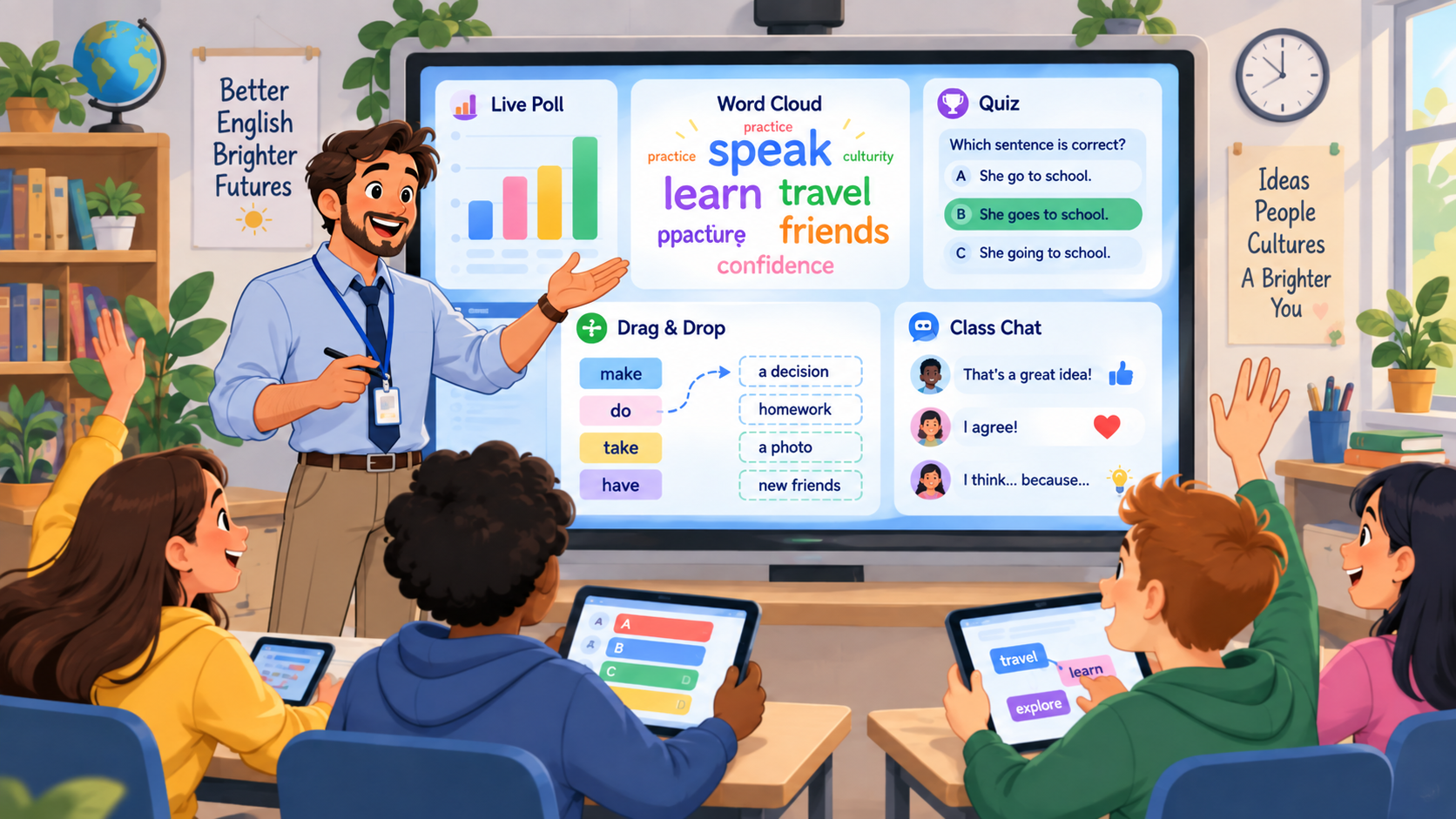
That is where interactive presentation tools for teachers can genuinely help. Instead of using slides only to display information, you can ask students to vote, type, draw, rank, predict, discuss, or answer while the lesson is still moving.
For an English teacher, that matters. A presentation can become a vocabulary check, a speaking prompt, a reading prediction task, a quick grammar diagnostic, or an exit ticket without forcing you to jump between five unrelated apps.
The harder part is choosing the right platform.
Some interactive presentation tools for teachers are strongest for live polling. Others are better for games, collaborative work, student-paced lessons, or simply making an existing PowerPoint more responsive.
So rather than pretending there is one perfect tool, this guide looks at nine current options through an ESL/EFL lens: what each one does well, where it fits naturally into a language lesson, and where it might create more work than it saves.
If you are still exploring AI and classroom technology more broadly, you may also want to read AI for Language Teachers: An Essential Practical Starting Guide.
Interactive Presentation Tools for Teachers: Free vs Paid and Live vs Self-Paced
Not every interactive presentation platform works the same way. Some are designed for live classroom participation, while others allow students to complete activities independently.
Before choosing a tool, it’s worth checking what its free plan actually includes. A platform may be free to start using but limit class sizes, session numbers, or more advanced question types.
Here’s how the nine tools compare.
| Tool | Free plan | Live lessons | Self-paced learning |
|---|---|---|---|
| Canva | Free Education plan for eligible K–12 educators | Interactive polls and quizzes | Shareable learning materials; not a dedicated paced-session system |
| Nearpod | Free Silver plan; 40 student joins per lesson | Yes | Yes, Student-Paced mode |
| Mentimeter | Free plan; 50 participants per month | Yes | Yes, Survey mode |
| Pear Deck | Free teacher plan | Yes | Yes, Student-Paced mode |
| Genially | Free interactive-content plan | Yes, through presentations | Yes, through self-directed interactive content |
| Wayground | Free Starter plan with feature limits | Yes | Yes, including homework assignments |
| Kahoot! | Free Go plan; 40 live participants | Yes | Yes, assigned quizzes |
| Curipod | Free plan; 2 teaching sessions per week | Yes | Primarily live teaching; check supported assignment options |
| ClassPoint | Free Basic plan; 25 students | Yes, inside PowerPoint | Primarily live PowerPoint lessons |
Free-plan conditions and feature availability can change. Some education plans also depend on institutional eligibility or geographic region. Check the official links before selecting a platform.
Which Should You Choose?
For live ESL lessons: Nearpod, Mentimeter, Pear Deck, and ClassPoint are worth considering when you want students to respond while you’re teaching.
For independent practice or homework: Nearpod, Pear Deck, Wayground, and Kahoot! support activities that students can complete at their own pace.
For visually engaging materials: Canva and Genially are attractive options, especially when presentation design and reusable content matter.
For AI-supported classroom interaction: Curipod is worth exploring when written responses, polls, and feedback are central to the lesson.
If you’re working with a limited budget, test the free version with a real classroom activity before upgrading. The best platform is the one that fits your teaching workflow and not necessarily the one with the longest feature list.
1. Canva: Visual Lessons with More Interactivity Than You Might Expect
Canva used to be the tool I associated mainly with attractive worksheets, posters, and presentation templates.
That description is now too narrow.
Canva Education currently supports interactive presentations, polls, quizzes, whiteboards, assignments, live learning activities, collaboration, and several AI-assisted creation tools.
For ESL teaching, its biggest strength is that so many formats live in the same place.
Imagine a B1 lesson on travel. You could begin with a photo-based prediction slide, run a quick poll on students’ preferred destinations, present useful travel expressions, move into a collaborative whiteboard, and finish with a short quiz.
You are still teaching one lesson. You are just asking students to do more than look at slides.
That makes Canva one of the more flexible interactive presentation tools for teachers, particularly if you already use it to make worksheets, visuals, or social content.
I would choose Canva when presentation design matters and you want a tool that does more than classroom response.
If your only goal is to ask three quick live questions, though, a more focused platform may get you there faster.
2. Nearpod: A Strong Fit for Structured Interactive Lessons
Nearpod feels less like a normal slide deck with a few extras and more like a complete interactive lesson pathway.
Its current formative-assessment activities include Draw It, open-ended questions, quizzes, polls, Collaborate Board, fill-in-the-blanks, matching pairs, and the game-style Time to Climb activity.
Explore Nearpod’s formative assessment tools
That range is useful when you want interaction spread across the lesson rather than saved for the end.
Take a grammar lesson on comparatives.
You might:
- start with a poll;
- explain the target structure;
- ask students to annotate two pictures;
- collect student-generated examples;
- finish with a five-question check.
The technology does not need to become the point of the lesson. It simply gives students several ways to respond.
Among interactive presentation tools for teachers, Nearpod makes particular sense for teachers who prefer a clear sequence and frequent formative checks.
For language teaching, I would think of it less as “a presentation maker” and more as a route through the lesson.
3. Mentimeter: When You Want More Than the Same Three Students Answering
A question asked aloud and a question asked through Mentimeter can produce very different classrooms.
Ask:
What is one word you associate with social media?
out loud, and perhaps four confident students answer.
Ask it through a live word cloud, and suddenly almost everybody can contribute.
Mentimeter currently supports live polls, quizzes, Q&A, word clouds, open-ended responses, scales, rankings and other response types, with students joining from their own devices.
Explore Mentimeter for Education
This makes it especially useful for language classes where participation tends to be uneven.
You could use it to:
- collect vocabulary before a reading;
- run an anonymous opinion poll;
- check understanding halfway through an explanation;
- gather questions students are reluctant to ask aloud;
- finish with a one-word reflection.
If your main reason for investigating interactive presentation tools for teachers is to make whole-class teaching feel less one-way, Mentimeter is one of the most natural options.
It is particularly good at turning “teacher asks, one student answers” into “teacher asks, everyone has a chance to answer.”
4. Pear Deck: A Natural Choice If Your Lessons Already Live in Slides
Not every teacher wants to rebuild years of presentations inside a new platform.
Pear Deck is attractive precisely because you may not have to.
Pear Deck works with Google Slides and PowerPoint Online, allowing students to respond directly to interactive slides. Its response types include text, numbers, drawing, draggable elements and multiple choice. Pear Deck also supports instructor-paced and student-paced sessions.
For an ESL reading lesson, imagine stopping before the final paragraph and asking every student to type a prediction.
Later, you could put an “agree/disagree” scale on screen, ask students to move a marker, and then use those responses to start pair discussion.
The technology gives you a bridge into speaking rather than replacing speaking.
Some interactive presentation tools for teachers require a completely new authoring workflow. Pear Deck’s appeal is almost the opposite: it adds interaction to presentation software many teachers already know.
That may not sound revolutionary, but in a busy teaching week, avoiding unnecessary rebuilding is a serious advantage.
5. Genially: For Lessons Students Can Explore
Most presentations move in one direction:
Slide 1 → Slide 2 → Slide 3 → Slide 4.
Genially gives you more room to break that pattern.
Its education tools include interactive slides, quizzes, games, pop-ups, hotspots, hover and click interactions, drag-and-drop elements, animations and rich media. It can also import existing presentations and support interactive materials for live or asynchronous learning.
For an English lesson, I like the idea of using Genially when exploration is part of the task.
For example, you could build a “mystery city” lesson. Students click places on a map, reveal short clues, collect vocabulary, and eventually decide which city the clues describe.
The presentation is no longer something the teacher simply advances.
Students have something to uncover.
That is where Genially stands apart from several other interactive presentation tools for teachers.
The obvious trade-off is preparation time. Interactive paths, clickable elements and game mechanics take more thought than a standard deck.
I would save that effort for lessons where the format genuinely improves the learning experience.
6. Wayground: When Quizzes Start Becoming Lessons
If the name Wayground is unfamiliar, the previous name probably is not: Quizizz.
Wayground now positions itself more broadly as an AI-supported learning platform. Teachers can create quizzes, lessons, passages, flashcards and interactive videos, use more than 18 question types, run live sessions, assign work for later and view student performance information.
For English teachers, this is useful when assessment and instruction start overlapping.
You might present a grammar idea, insert two questions, continue teaching, move students into independent practice and then examine the results.
It also suits teachers who already like quiz-based learning but have outgrown the idea of using a quiz platform only for revision games.
When comparing interactive presentation tools for teachers, Wayground sits somewhere between a lesson tool and an assessment platform.
That can reduce the number of separate systems you need to manage.
For more ideas on quiz design, see Online Multiple Choice Questions: 9 Easy Ways to Create Better ESL Quizzes.
7. Kahoot!: Still Useful, but Not Only for Fast Quizzes
Kahoot! is probably the platform on this list that needs the least introduction.
What is worth noting is that the current platform goes beyond a simple run of multiple-choice questions. Teachers can combine slides with quizzes, polls, puzzles, type-answer questions, word clouds and open-ended responses, and can deliver activities live or in student-paced formats.
For ESL classes, Kahoot! works particularly well for retrieval.
Five minutes at the start of class can revisit vocabulary from the previous lesson.
Ten minutes near the end can show whether students can distinguish two grammar forms.
But I would resist the temptation to turn every language question into a speed test.
Some questions need thought.
A collocation question, reading inference item, or subtle grammar distinction may need twenty seconds of thinking rather than five seconds of frantic clicking.
This matters when choosing interactive presentation tools for teachers: engagement is valuable, but visible excitement is not automatically evidence of learning.
Use the game mechanics when they serve the task.
8. Curipod: An Interesting Option for AI-Assisted Student Responses
Curipod is one of the more interesting newer options because AI is woven directly into the lesson workflow.
Its current activities include short answers, multiple choice, polls, word clouds, drawing, AI feedback and AI whiteboard tasks. Teachers can also use AI to generate or edit activities and lesson slides.
See Curipod’s interactive activity types
For language teaching, I find the written-response side more interesting than the quiz side.
Suppose a B1 class responds to:
Should homework be optional?
Students could write three sentences, receive feedback, revise their response and then discuss the same issue with a partner.
That is much richer language practice than simply selecting A, B, C or D.
Among newer interactive presentation tools for teachers, Curipod is particularly worth investigating if you want students to produce and revise language during the presentation itself.
The usual AI caution still applies: feedback should be checked against your teaching aims and your knowledge of the learner.
AI can assist the feedback loop. It should not silently become the teacher.
9. ClassPoint: If PowerPoint Is Staying, No Matter What
Some teachers want a new platform.
Others have years of carefully built PowerPoint decks and absolutely no interest in starting over.
ClassPoint is made for the second group.
It works inside PowerPoint and currently supports response types including multiple choice, word clouds, fill-in-the-blanks, short answers, video uploads, image uploads, slide drawing and audio recording. It also has AI question generation that can build questions from PowerPoint slides and target different Bloom’s taxonomy levels.
For language teachers, the audio-response option is particularly interesting.
A speaking check does not always have to mean asking two students to perform in front of the whole class. A tool that can collect short recorded answers gives you another option.
For teachers with a large archive of PowerPoint lessons, ClassPoint also illustrates an important point: the best interactive presentation tools for teachers are not necessarily the platforms with the longest feature list.
Sometimes the best tool is simply the one that creates the least friction.
Which Tool Fits Your ESL Classroom?
If you mainly want visually polished lessons, Canva is a comfortable starting point.
If you prefer a carefully structured lesson with repeated checks for understanding, Nearpod is stronger.
If your biggest challenge is participation, especially in larger classes, Mentimeter can give quieter students another route into the lesson.
If most of your teaching already lives in Google Slides or PowerPoint Online, Pear Deck lets you add interactivity without rebuilding everything.
If you want students to explore clickable content, Genially offers more creative freedom.
If quizzes, homework and assessment data are central to your workflow, Wayground deserves a closer look.
If you want fast, familiar game-style revision, Kahoot! still makes sense.
If you want AI-supported written responses and revision, Curipod takes a different approach.
And if PowerPoint is non-negotiable, ClassPoint is the obvious place to investigate first.
This is why I would be cautious about declaring one universal winner. Interactive presentation tools for teachers solve different classroom problems.
Choose the classroom problem first.
Then choose the software.
How to Use Interactive Presentations Without Turning Every Lesson into a Game
It is surprisingly easy to overdo interactivity.
A lesson containing a poll, quiz, word cloud, drawing task, game, collaborative board and exit ticket might look impressive when you plan it.
In the room, it can feel exhausting.
A more useful pattern is to add interaction when you actually need information from students.
Before teaching: Find out what they already know.
During explanation: Check whether they are following.
Before speaking: Collect ideas or useful vocabulary.
After practice: Identify what still needs attention.
At the end: Get one small piece of evidence that the lesson aim was achieved.
The best interactive presentation tools for teachers make those moments easier.
“Students are clicking something” is not, on its own, a learning objective.
A Simple 40-Minute ESL Lesson Using One Interactive Tool
Suppose you are teaching B1 students how to express and support opinions.
Minutes 0–5: Display the statement “School uniforms should be compulsory” and run an agree/disagree poll.
Minutes 5–12: Teach useful phrases such as:
In my view…
I see your point, but…
One reason is…
Minutes 12–18: Display three short opinions and ask students which one is best supported.
Minutes 18–30: Students discuss a new statement in pairs.
Minutes 30–35: Collect one sentence from each student through an open-response slide.
Minutes 35–40: Finish with a confidence check or exit question.
Notice what the technology does not do.
It does not replace the speaking task.
It prepares for it, checks understanding around it, and gives the teacher useful information afterwards.
That balance matters when using interactive presentation tools for teachers in language classrooms.
For quick activities that can fit into a similar lesson, see AI Classroom Activities: 10 Easy ESL Ideas for the Last 10 Minutes of Class.
Can AI Help You Build Interactive Presentations Faster?
Yes, especially for repetitive preparation.
You can use AI to:
- brainstorm poll questions;
- create quiz distractors;
- simplify prompts for lower CEFR levels;
- generate discussion statements;
- draft short reading texts;
- create exit-ticket questions;
- suggest vocabulary checks.
I would not hand over the entire lesson design.
A simple reusable prompt is often enough:
Act as an experienced ESL teacher.

My students are [LEVEL].

Lesson topic:
[TOPIC]

Lesson aim:
[AIM]

I am creating an interactive presentation for a [TIME]-minute lesson.

Suggest:
- one opening poll;
- one quick comprehension check;
- one pair-discussion prompt;
- one vocabulary activity;
- one exit-ticket question.

Keep each activity short.

Do not turn the whole lesson into quizzes.

The main aim is meaningful English use.
If you want a larger prompt library, see ChatGPT Prompts for ESL Teachers: 30 Powerful Prompts by Language Skill.
Common Mistakes with Interactive Presentation Tools for Teachers
The first mistake is choosing the platform before deciding what students actually need to do.
Start with the lesson aim.
Then choose the interaction.
Another common mistake is turning every check into a competition. Competitive quizzes are useful for recall and review, but less suitable for extended speaking, nuanced interpretation, or careful writing.
There is also a tendency to digitise activities simply because we can.
If a two-minute pair discussion already gets everybody speaking, it probably does not need a QR code.
And then there is the practical side: Wi-Fi, logins, old devices and unfamiliar interfaces can quietly eat ten minutes of a lesson.
Before using new interactive presentation tools for teachers, test the student joining process yourself.
Finally, keep accessibility in mind. Small text, colour-dependent instructions, very fast timers and visually dense slides may make the activity harder for some learners.
Technology should reduce friction.
It should not create a new kind of friction.
FAQ: Interactive Presentation Tools for Teachers
What are interactive presentation tools for teachers?
Interactive presentation tools for teachers are platforms that allow students to respond during or around a presentation through polls, quizzes, word clouds, drawings, open-ended questions, games, collaborative tasks, or other forms of participation.
Which interactive presentation tool is best for ESL teachers?
There is no single best platform for every ESL classroom. Canva works well for visual creation, Nearpod for structured lessons, Mentimeter for live participation, Pear Deck for existing slide workflows, Genially for exploratory content, Wayground and Kahoot! for quiz-based interaction, Curipod for AI-supported responses, and ClassPoint for PowerPoint users.
Can interactive presentation tools be used for speaking lessons?
Yes, but the tool should support the speaking rather than replace it. A poll can introduce an issue, a word cloud can supply vocabulary, or a short written response can help students prepare before pair discussion.
Are interactive presentation tools useful for formative assessment?
Yes. Polls, quizzes, open responses and exit tickets can give teachers quick evidence of what students understand while there is still time to adjust the lesson.
Do students need accounts?
It varies by platform and session settings. Some tools allow students to join with a code or link, while particular features or school configurations may require sign-in. Check the platform and your institution’s privacy requirements before using it with students.
Can AI create interactive ESL presentations?
Several current platforms include AI-supported creation, activity generation or question generation. AI can speed up the first draft, but teachers should still check accuracy, language level, timing and alignment with the lesson objective.
Final Thoughts
The strongest interactive presentation tools for teachers do not make good teaching unnecessary.
They make it easier to hear from students while you teach.
That is the standard I would use when choosing one.
Do students get more opportunities to use English?
Can you notice misunderstanding earlier?
Does the tool eventually save preparation time?
And does it fit the way you already teach?
If the answer is yes, the platform is probably earning its place in your classroom.
If the technology itself starts becoming the lesson, it probably is not.
Start small.
Take one interaction you already use — a show of hands, a vocabulary brainstorm, a comprehension check — and move that into one of these interactive presentation tools for teachers.
Once that feels natural, add more only when it genuinely improves the lesson.